Chatbook: a notebook you can write in English
Notebook Intelligence (NBI) is an AI coding assistant and extensible AI framework for JupyterLab.
NBI 6.0 adds Chatbook. A Chatbook is an ordinary .ipynb file in which each cell is either a natural-language prompt or ordinary code. You write “drop the duplicate day and interpolate the missing temperatures,” press Shift Enter, and the cell generates code for that step and runs it in a real Jupyter kernel, with everything the cells above it already defined still in memory. The code is hidden by default but never secret: you can review it before it runs, open it afterward, and export the whole notebook as plain code when you are done.
This post walks through one real session, start to finish, and then covers the controls around it. Every prompt, piece of generated code, and output below is what the session actually produced, including the one cell that failed.
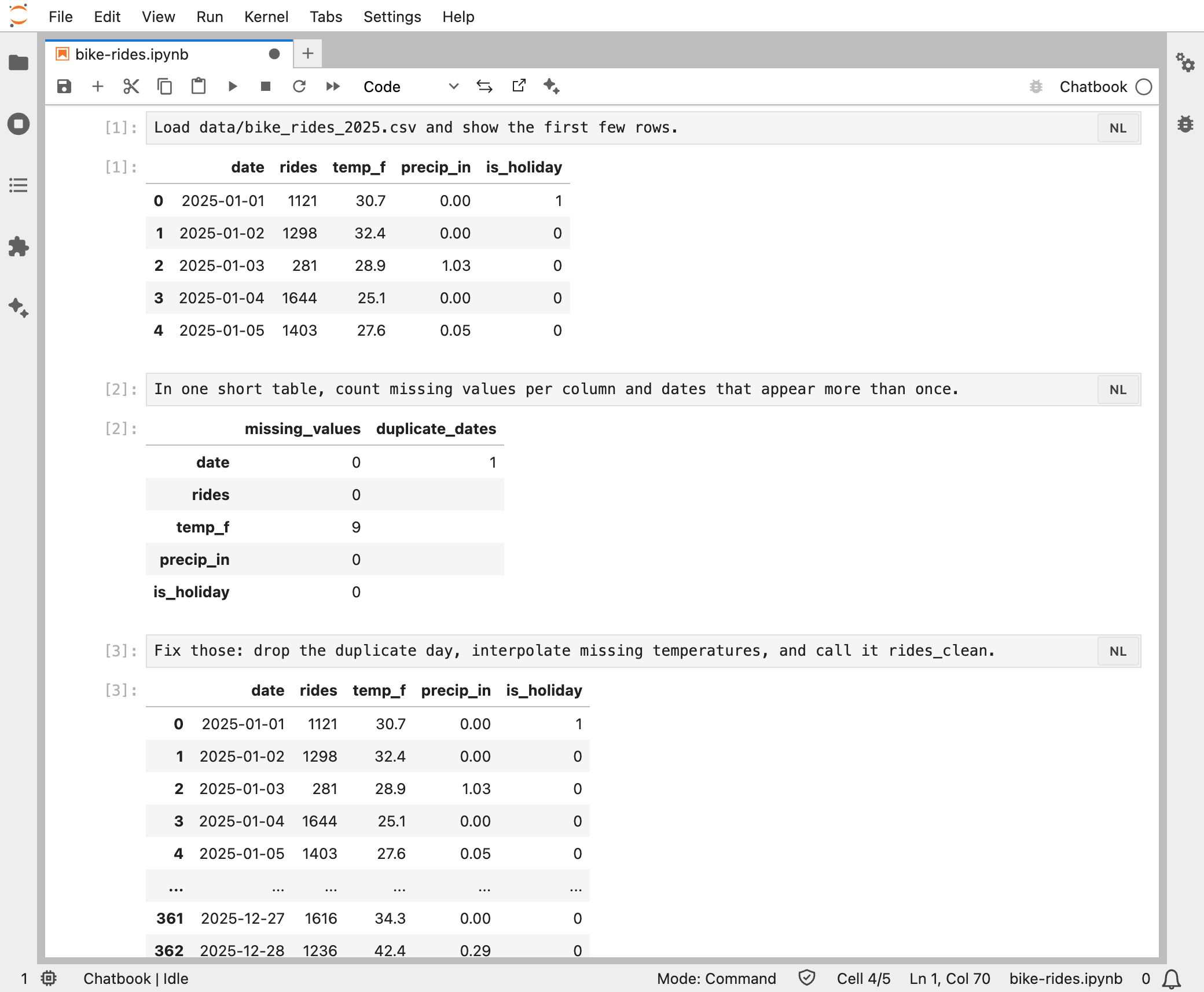
Two kinds of cell
Every Chatbook cell is one of two kinds, and a badge at the top right of the cell says which. NL cells hold a natural-language prompt. Cd cells hold code you write yourself and run exactly as typed, the same as in any notebook. The badge is a button that switches the cell, Ctrl J switches the active cell, and Ctrl Shift J switches every cell. Both shortcuts are a literal Ctrl, including on macOS.
Chatbook is also a kernel. The notebook runs against a chatbook kernel, which starts a real backend kernel as a child and executes all code there. That backend is Python 3 by default, and you can pick any installed kernelspec under Settings → Chatbook, so Chatbook is not Python-only: language, syntax highlighting, and export follow whichever kernel you choose.
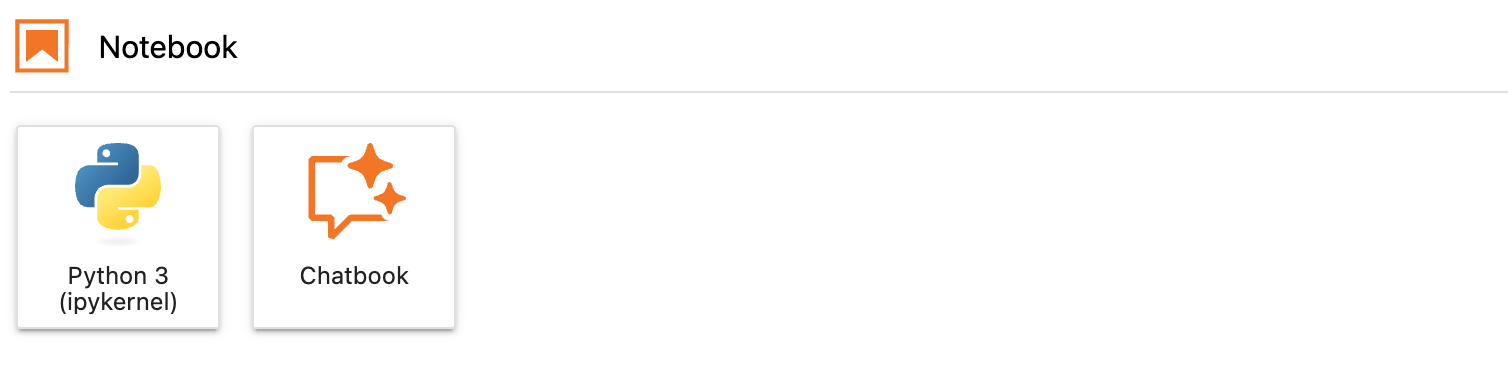
To start one, use the Chatbook tile in the launcher, or New Chatbook from the command palette.
A session, one prompt at a time
The example uses a year of daily bike-share rides, a small CSV of sample data with a few realistic problems planted in it, plus a README.md that documents its columns. The model is gpt-5.4-mini through NBI’s OpenAI-compatible provider. Generation follows whichever model NBI is set up to use (more on that below), and model output varies from run to run, so your code will not match this word for word.
The first prompt is the obvious one: load the file and show the first few rows. Chatbook generates the code and, because the default execution mode is Always confirm, stops to show it before anything runs.
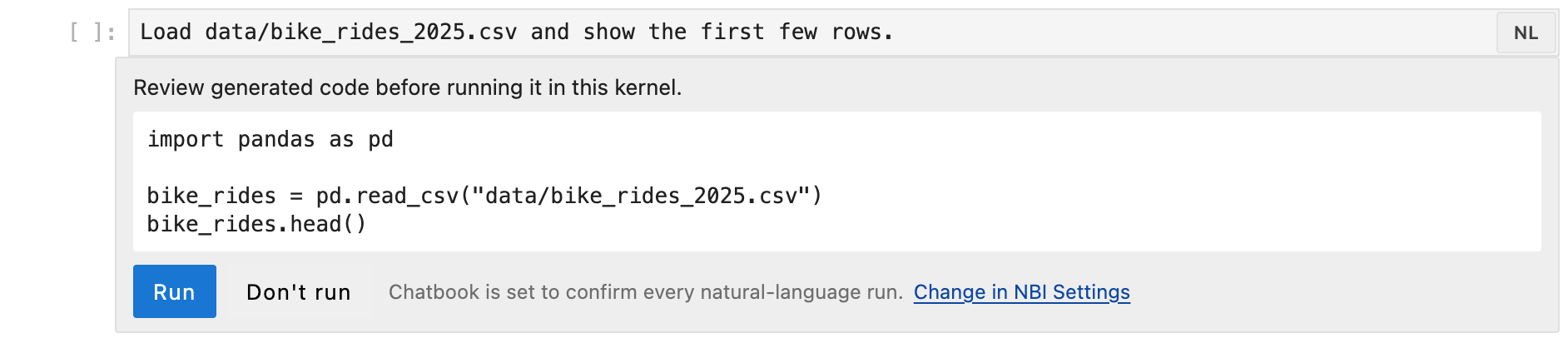
The confirm bar names the setting that produced it and links straight to it. Click Run and the code executes, the preview folds away, and the cell shows its output like any other notebook cell.
The next prompt asks for a quick health check: in one short table, count missing values per column and dates that appear more than once. The answer is nine missing temperatures and one duplicated day, which is exactly what was planted. So the prompt after that asks for the fix, and names the result so later cells can refer to it:
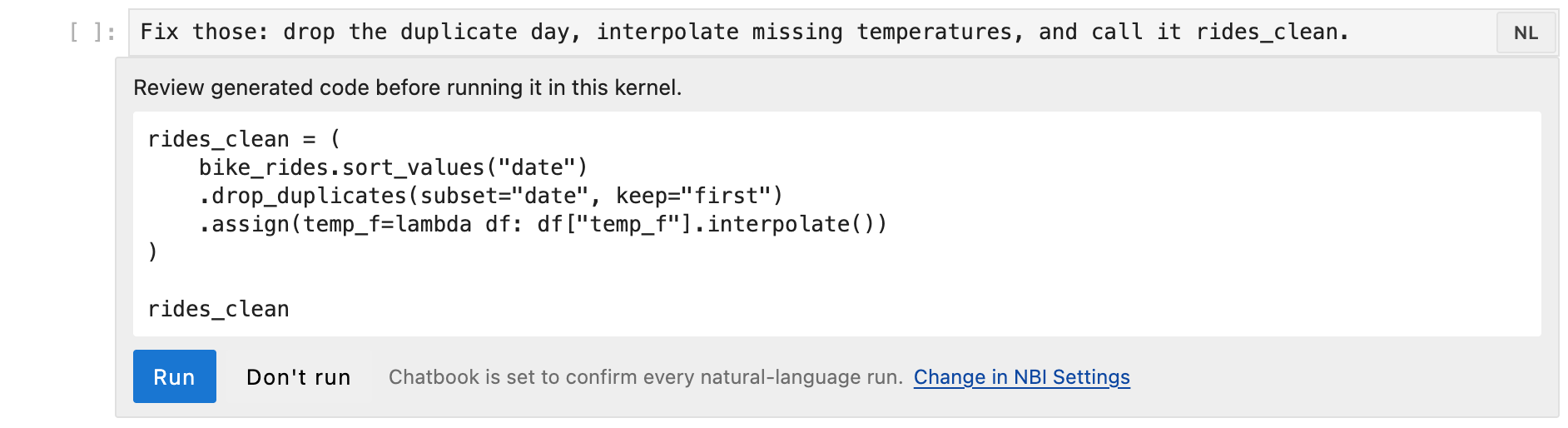
Notice what the generated code does not do. It does not reload the CSV or re-import pandas. The cells above the cursor are part of the context Chatbook sends, so the model knows that bike_rides already exists in the kernel and builds on it. Each prompt is a step in one analysis, not a standalone request. Naming results, as in “call it rides_clean,” is worth making a habit: it gives later prompts, and your own code, something stable to refer to.
With clean data, a chart is one sentence away:
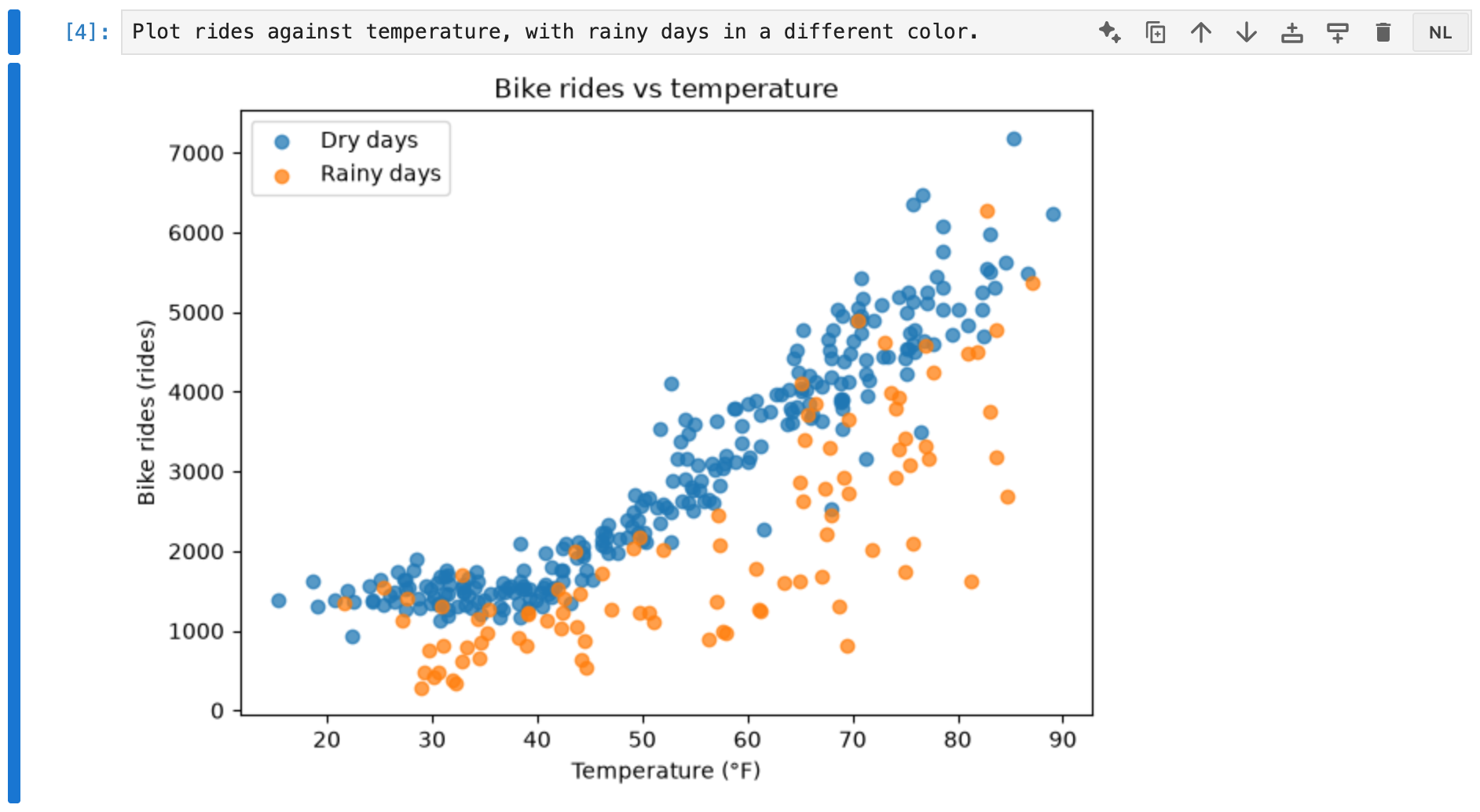
Ridership climbs with temperature and rain pulls it down hard, which is the shape you would hope to see before building anything on this data.
Pulling in context with @
Typing @ in a prompt cell opens a menu of context you can attach. The built-in provider, Files & folders, browses the Jupyter root. Pick a file and its contents travel with the prompt.

That matters here because the prompt asks for “the council’s units” without saying what they are. The only place that information exists is the README, which says the city council reports in degrees Celsius and millimetres.
The first attempt failed:
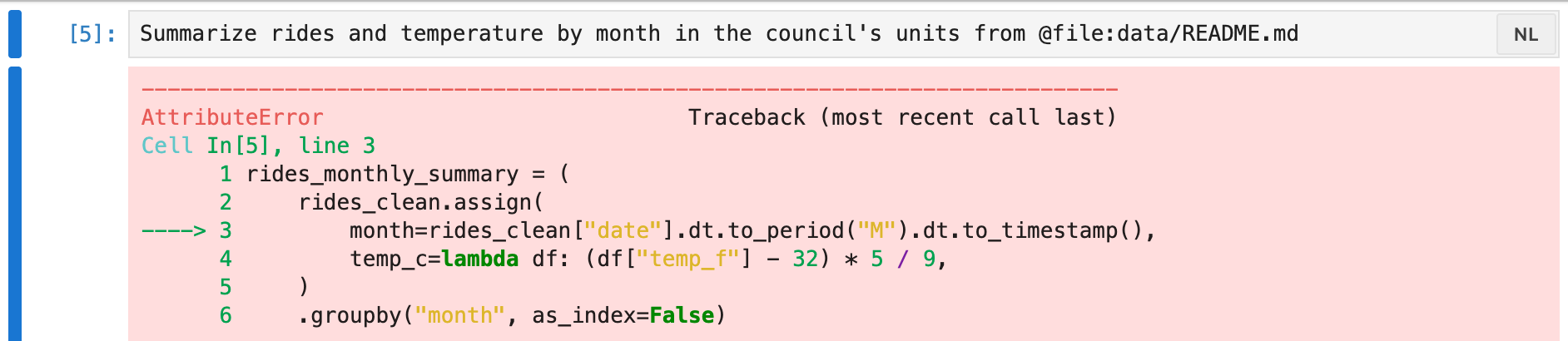
The generated code called .dt on the date column, but the earlier fix cell had left that column as text rather than datetimes. It is the kind of mistake a person makes too, and what happened next is the part worth showing. Running the cell again, with no change to the prompt, produced this:
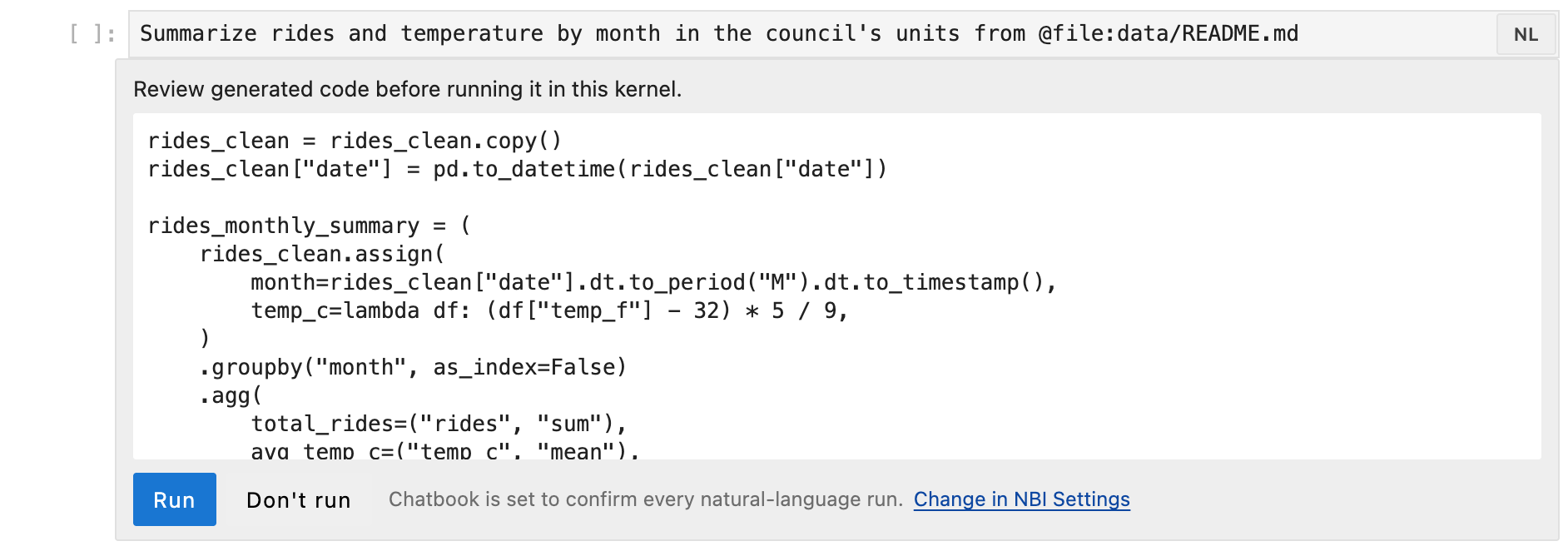
When an NL cell runs again, the context includes that cell’s previous code and its output, traceback included. The model saw its own error, converted the column first, and also added precipitation in millimetres this time, both units taken from the README:
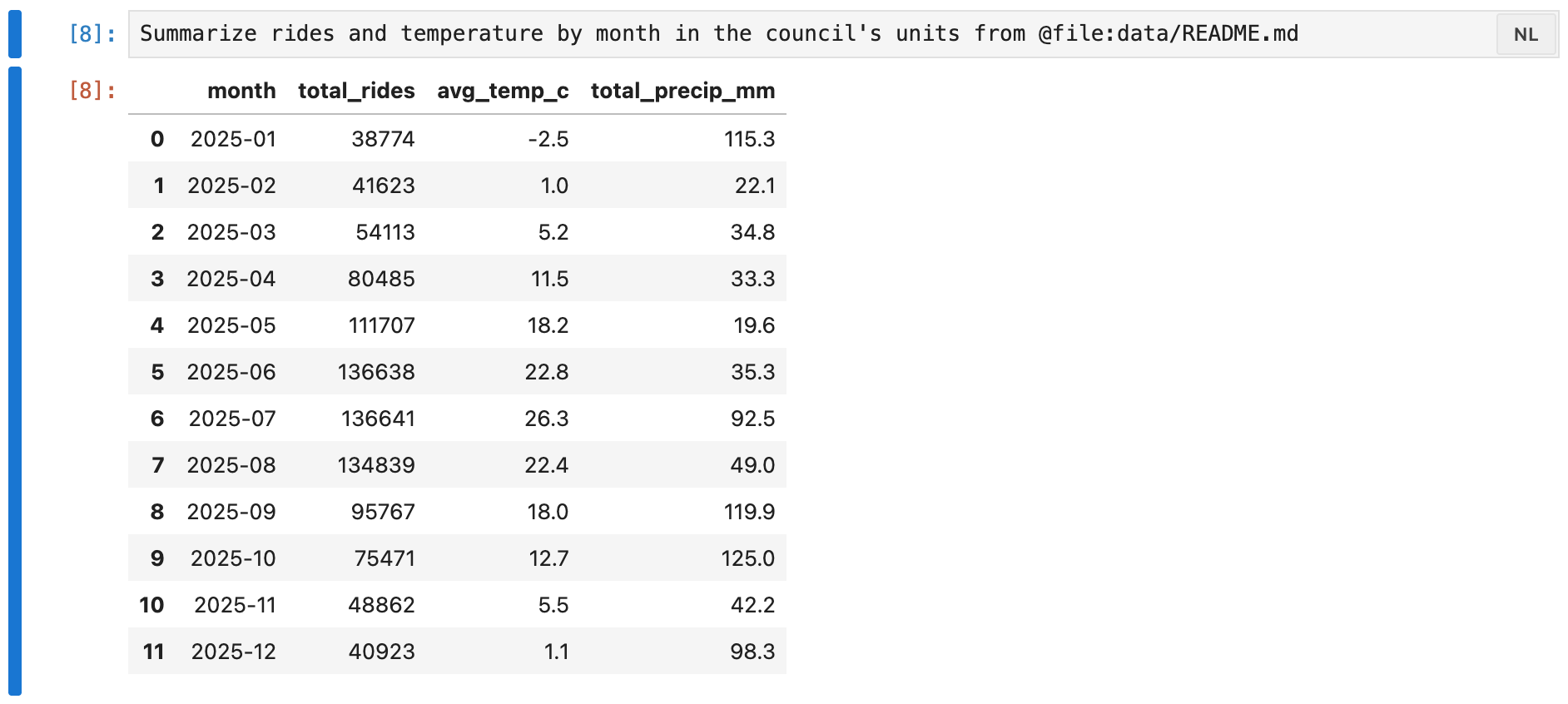
A prompt that carries a mention is always regenerated rather than reusing earlier code, because the file it points at may have changed. Files are read as text and truncated at 16,000 characters, and extensions can register mention providers of their own, which appear in the same menu. The Chatbook extensions guide covers how.
One thing to know in 6.0.0: leave a space after a mention. Punctuation written directly against it, as in @file:data/README.md,, is read as part of the file name, and the file is quietly left out.
Writing code yourself
Not every step needs a prompt. Sometimes you know exactly what you want, and typing it is faster than describing it. Press Ctrl J in a new cell, the badge flips to Cd, and the cell is a plain code cell that can use everything the prompts defined:

The first time a code cell runs successfully, Chatbook asks the model for an English description of it and stores that in the cell’s metadata, so the cell can be read as prose and switched back to a prompt later. For the cell above, the description read:
Convert rides_clean[“date”] to datetime, create a boolean is_weekend for dates where dt.dayofweek >= 5, set rides = rides_clean[“rides”], compute weekend_lift as the mean of rides on weekends divided by the mean on weekdays minus 1, and return an f-string formatted as “Weekends average {weekend_lift:.0%} more rides than weekdays”.
It is a faithful, literal restatement rather than a summary. It is not refreshed when you edit the code; Refresh English representation in the command palette does that. It also means code you write by hand in a Chatbook is sent to the model, even under Always confirm, which is worth knowing in a deployment where code is more sensitive than prompts.
House style with rules
The first pass at this session rendered the chart twice: the generated code returned the figure as the cell’s last line, and the notebook’s inline backend drew it as well. It did something similar with a few tables, calling display() on a result and then also leaving it as the last expression. Nothing was wrong, but it was noisy.
NBI’s rules are the fix for that kind of thing. A rule is a Markdown file under ~/.jupyter/nbi/rules/, and rules under modes/chatbook/ apply only to Chatbook generation. This one, saved as ~/.jupyter/nbi/rules/modes/chatbook/01-house-style.md, was in place for everything shown above:
---
priority: 10
---

# Notebook house style

- Show a result once: end the cell with it, or call `display()`, not both.
- Finish plotting cells with `plt.show()` instead of returning the figure.
- Label chart axes with their units.
After it loaded, every table rendered once and the chart ended in plt.show(). The last line was followed a little too literally: the chart’s y-axis reads “Bike rides (rides).” Global rules without a mode apply to Chatbook too, and so does an AGENTS.md at the root of the project, which makes it a good place for conventions that should travel with the repository. The ruleset guide has the details.
Deciding when generated code runs
Generated code runs in a real kernel with the same reach as any notebook cell: your files, the network, environment variables, and package installs. So the most important Chatbook setting is how much it asks before running what it generates. It lives under Settings → Chatbook, alongside the choice of backend kernel.
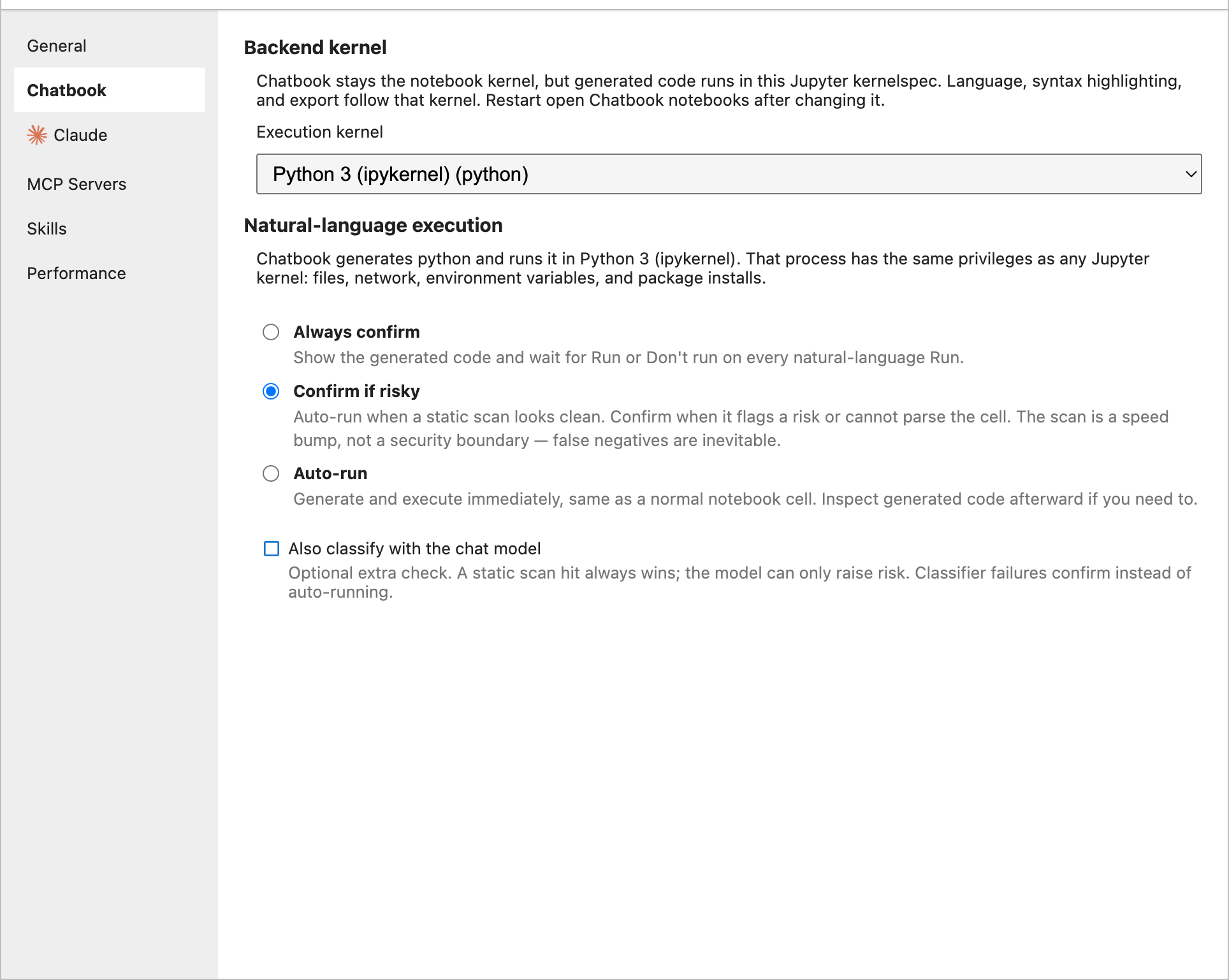
- Always confirm, the default, shows the generated code and waits for Run or Don’t run every time.
- Confirm if risky runs generated code straight away when a static scan finds nothing concerning, and stops to confirm when it does.
- Auto-run generates and executes without asking, like a normal notebook cell.
With Confirm if risky selected, a question about the data just runs:

A request to write a file stops, and the confirm bar says what tripped the scan:
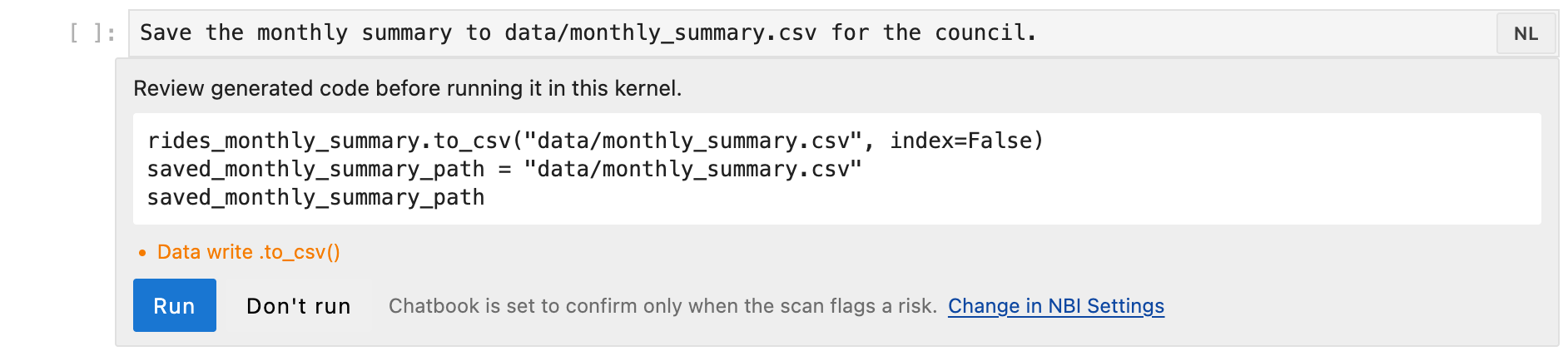
For Python, the scan looks for imports like os, subprocess, socket, and requests; calls like eval, exec, shutil.rmtree, file writes, and to_csv or to_sql; shell escapes such as ! lines and %%bash; and code it cannot parse, which counts as risky. For other languages the scan fails closed, so Confirm if risky confirms every generated cell. An optional second check asks the chat model to classify the code as well; it can only raise the risk, never lower it, and if it times out Chatbook confirms rather than running.
The settings page is plain about what this is, and so is this post: the scan is a speed bump, not a security boundary. It will flag harmless things, like saving that CSV, and it will miss things, because a data library can reach the network without importing anything on the list. If you need isolation, the boundary is the kernel process itself, for example a JupyterHub user container. Chatbook adds no sandbox of its own.
Re-running a prompt whose code you already approved can skip the confirm bar, but only within the current session, only for a self-contained prompt (no mentions, no extension-supplied context, and no rules that apply), and only when regenerating produces exactly the same code. Anything else asks again.
Taking it with you
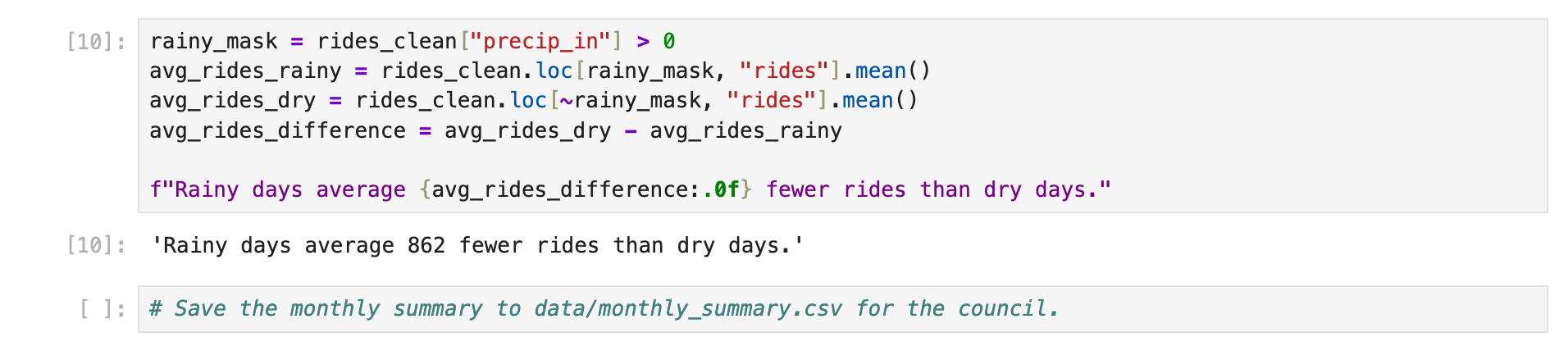
Export as code notebook, in the notebook toolbar, writes a plain notebook for the backend language next to the original; bike-rides.ipynb becomes bike-rides-python.ipynb, and the Chatbook itself is left unchanged. Prompt cells become the code they generated. A prompt that never ran, or that changed since it last ran, becomes a comment instead, so an export never passes off code as having run when it did not. The file-writing prompt from above, which was declined, came out like this:
Chatbook keeps its state in cell metadata: the prompt, the generated code, and hashes of the prompt and its context. A Chatbook you share therefore carries the generated code and the model’s descriptions of your own code, not just the prompts. Treat a Chatbook from someone else as untrusted input. Its stored code is not re-derived when you open it, which is why approved-code reuse is scoped to the session rather than read back from the file.
Which model writes the code
Chatbook follows NBI’s active mode. In the default mode it uses the chat model configured under General, which is how the session above was run. In Claude mode it uses the model, API key, and base URL configured under Claude, and calls the Anthropic API directly, so it needs a credential the server can see: the API key in Claude settings, or ANTHROPIC_API_KEY. Signing in through the Claude CLI is enough for the chat sidebar but not for Chatbook. In ACP mode it starts a dedicated instance of the configured agent and sends each request through a fresh session, separate from the chat sidebar, always without full access and with the agent’s own tool permission requests denied.
For administrators
Chatbook is on by default. NBI_CHATBOOK_POLICY=force-off (traitlet chatbook_policy) turns it off: the kernelspec disappears from the launcher and kernel picker, the Chatbook settings tab and commands are hidden, and the generate and mention endpoints answer 403. NBI_CHATBOOK_MAX_EXECUTION_MODE (traitlet chatbook_max_execution_mode) caps how permissive a user can be; set it to always-confirm and the other two modes are removed from the settings page. The cap applies to generated code only. A cell switched to Cd is the user’s own code and runs like any notebook cell. The admin guide covers both.
Try it
Chatbook ships in NBI 6.0:
pip install --upgrade notebook-intelligence
Restart JupyterLab, then open the Chatbook tile in the launcher. Generation uses the model NBI is already configured with. In Claude mode, make sure the server has an Anthropic API key, as described above. The Chatbook guide is the full reference, and the rest of the release is covered in the 6.0.0 release notes.